Appearance
How to Create a Free Azure Account
This guide walks through the steps required to create a Microsoft Entra ID tenant while signing up for an Azure free trial.
Start the Azure Free Trial
Navigate to the Azure signup page: https://azure.microsoft.com/en-gb/free/entra-id
If you do not have a personal email account, create one at https://www.microsoft.com/en-us/microsoft-365/outlook
Select Pay as you go.
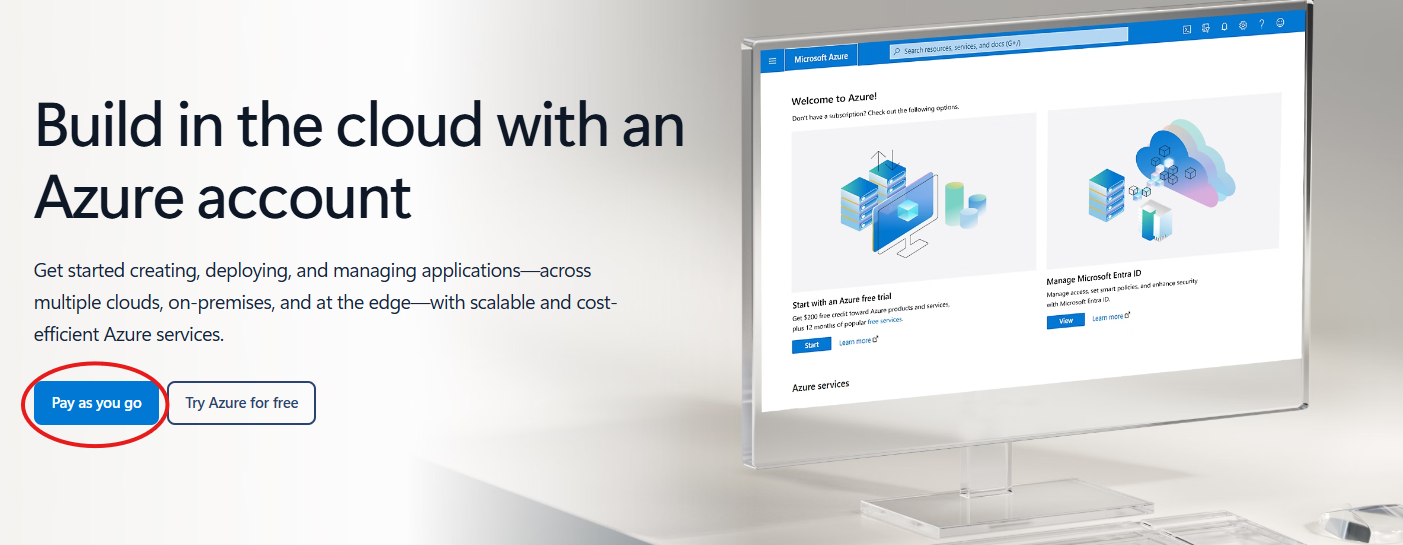
You will be prompted to sign in with an existing Microsoft account or create a new one.
After signing in, the system begins a three-step registration process.
Step 1 of 3 — Organisation & Contact Information
This step establishes who is creating the tenant and which organisation it belongs to.
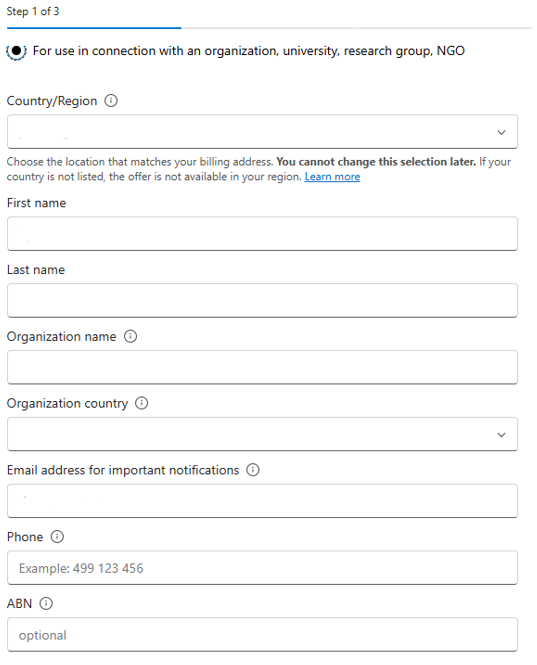
Fields to Complete
| Field | What to Enter | Notes |
|---|---|---|
| Personal use or for organisation | Choose "for use in connection with an organisation…" | Cannot be changed later |
| Country/Region | Select the country that matches your billing address | Cannot be changed later |
| First name | Your legal first name | Used for identity verification |
| Last name | Your legal last name | Used for identity verification |
| Organisation name | Name of your organisation | This becomes part of your Azure billing profile |
| Organisation country | Country where the organisation is registered | Often autofilled based on earlier selection |
| Email address for important notifications | Your work email | Azure sends billing, security, and service alerts here |
| Phone | A valid mobile or landline number | Used for identity verification |
| ABN (optional) | Leave this section empty | Optional but recommended for organisations in Australia |
Step 2 of 3 — Address & Agreements
This step collects your physical address and requires you to accept Microsoft's terms.
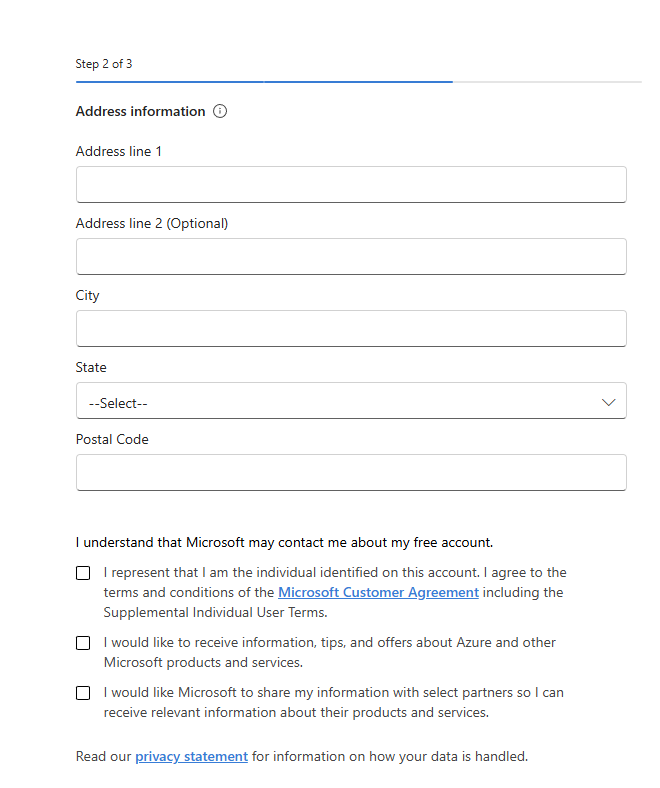
Fields to Complete
| Field | What to Enter | Notes |
|---|---|---|
| Address line 1 | Primary business address | Required |
| Address line 2 | Suite, unit, or building info | Optional |
| City | City or suburb | Required |
| State | Select from the dropdown | Required |
| Postal Code | Valid postal code | Required; form will not continue without it |
Required Agreements
You must check the box confirming:
- You are the individual identified on the account, and you agree to the Microsoft Customer Agreement and Supplemental Individual User Terms
Optional Communication Preferences
You may choose to opt in to:
- Product updates, tips, and offers from Microsoft
- Information from Microsoft partners
These do not affect your ability to proceed.
Step 3 of 3 — Payment Verification
Azure requires a valid payment method to prevent fraud and confirm identity. You will not be charged unless you later upgrade to Pay As You Go.
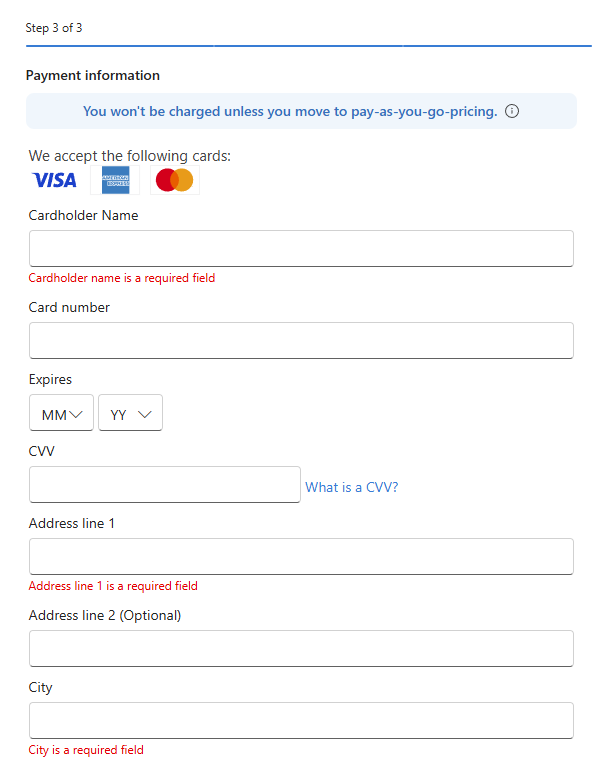
Fields to Complete
| Field | What to Enter | Notes |
|---|---|---|
| Cardholder Name | Name exactly as it appears on the card | Required |
| Card Number | Valid Visa, Mastercard, or American Express | Required |
| Expiry (MM/YY) | Select month and year | Required |
| CVV | 3 or 4-digit security code | Required |
| Address line 1 | Billing address for the card | Required |
| Address line 2 | Optional | |
| City | City or suburb | Required |
| State | Select from the dropdown | Required |
| Postal Code | Valid postal code | Required |
Once submitted, Microsoft will validate your card and complete the tenant creation.
Completion
After all three steps are successfully submitted:
- Your Azure subscription is created
- Your Microsoft Entra ID tenant is provisioned
- You can immediately begin configuring users, groups, applications, and security settings